Integrating Xlight FTP Server with Active Directory
Xlight FTP Server can be integrated with Active Directory to authenticate users. Users can use the same username and password to access the resources of the FTP server, e-mail server etc. Note: after the 30-day evaluation period, this function is only supported by the Professional edition of Xlight FTP Server.
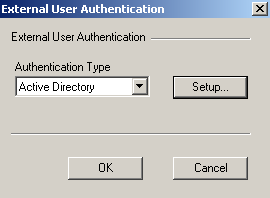
To use Active Directory for external user authentication, you need to go to [Virtual Server Configuration]->[General]->[Virtual Server], and select the option "Enable external user authentication" . Click the "Setup..." button, Active Directory must be selected in the "Authentication Type" of the virtual server configuration as shown in the figure below:
When you open the Active Directory setup dialog, if your server already joined the Active Directory domain, Xlight FTP Server will automatically detect your Logon Domain and Base DN. If you can not see this information, you have to set the Logon Domain and Base DN manually.
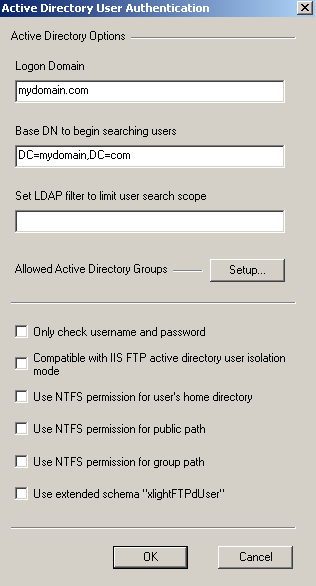
If you want to only check username and password against Active Directory, you can choose the option "Only check username and password". If this option is selected, the AD attribute "homeDirectory" will not be used also.
Setup default user profile
If you don't want to set the AD attribute "homeDirectory" as the user's FTP home directory, or if you have many AD users and don't want to set "homeDirectory" for each of them. You can use the default user profile to set up the home directory for users. This link has a detailed description of the setup of the default user profile.
File contains users blocked from external authentication
When the server is connected to the public internet, there may be constant log-in attempts to your server by bots using common usernames. If the server authenticates the user via Active Directory, log-in attempts by bots may create unnecessary load to Active Directory. You can use this option to block some users from using Active Directory. You create and select a text file and each line of the file is a username. Users in this file will not go to Active Directory.
Setup user's home directory in the active directory
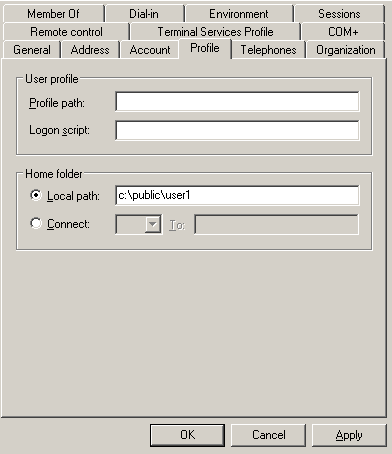
You can use Microsoft's Active Directory Users and Computers console to set the user's home directory, as shown in the figure below. The AD attribute "homeDirectory" will be used as the FTP user's home directory.
Note: When a user logs in for the first time if his home directory doesn't exist, it will be created by Xlight FTP Server automatically.
Use NTFS permission for the user's home directory
When the option "Use NTFS permission for user's home directory" is selected, Xlight FTP Server will impersonate the AD account of the login FTP user. Access to his home directory will be restricted by his NTFS permission. If this option is not selected, the SYSTEM or current login user account running Xlight FTP Server will be used to access the home directories of all users.
When the option "Use NTFS permission for user's home directory" is selected, but the user cannot access his home directory, there are two things about NTFS permission that you need to check:
1. If user authentication to the Active Directory succeeded, but in the FTP log, there was a log entry such as "450 Can't change directory to /.". You may have an NTFS permission problem. You need to check if the account has the permission to access this directory. If the home directory is a UNC path located in another remote machine, from the desktop console of that machine, you should be able to log in by pressing the "Alt+Ctl+Del" key with the same user account. After logging in with this account from the desktop console, check if he has enough permissions to access the configured home directory.
2. You should not set a normal user's home directory to the domain controller. Microsoft's domain security policy will not allow a normal user to access resources in the domain controller. Although this user can be successfully authenticated with AD, he will not be able to access his home directory in the domain controller. Only the account with administrator privilege can access his home directory in the domain controller.
Compatible with the IIS FTP active directory's user isolation mode
Xlight FTP Server provides a way to be compatible with the Active Directory user isolation mode introduced by IIS FTP Server 6.0. You can select the option "Compatible with IIS FTP active directory user isolation mode". When this option is selected, Xlight FTP Server will read and use IIS FTP AD attributes msIIS-FTPRoot and msIIS-FTPDir as the user's home directory. If these IIS FTP attributes are not set or do not exist in the active directory, the AD attribute "homeDirectory" will automatically be used as this user's home directory.
Setup public paths for the FTP server
You can set up public paths for the virtual server. After authentication, all users can see and download from public paths, as shown in the figure below:
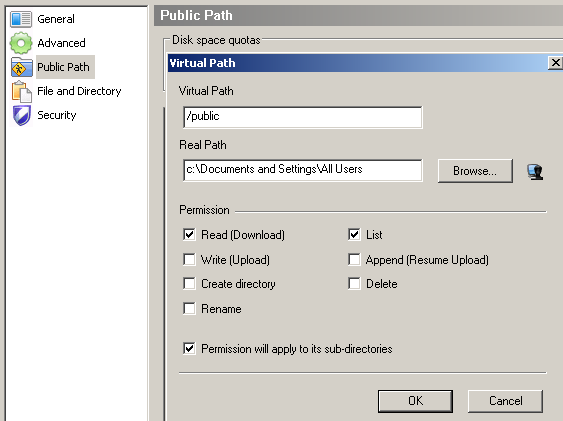
Because the user's home directory in the AD implicitly uses "/" as his user virtual path, you should not use "/" for the public virtual path. Otherwise since the "/" is duplicated, when an AD user logs in, he can only see the content of the public virtual path, not his home directory. In the above figure, we use "/public" as the public virtual path.
Use NTFS permission for FTP Server's public path
When the option "Use NTFS permission for public path" is selected, Xlight FTP Server will impersonate the login AD account. The NTFS permission of each AD user will then be used to check against the public path access. NTFS-based permission will give more flexibility to the public path's permission control and it will override the public path's local FTP permission. However, the impersonation of AD accounts may fail in some rare situations. If the impersonation fails, the local FTP permission of the public path will be used. So if you use NTFS permission for public path access, you still need to set a proper (the least) local FTP permission for it in case the situation that impersonation of the AD account fails.
Use NTFS permission for the user's group path
When the option "Use NTFS permission for group path" is selected, Xlight FTP Server will impersonate the login AD account. The NTFS permission of each AD user will then be used to check against the local FTP group path access. After creating a local FTP group, the group path can be set in the local Xlight FTP Server.
Map a user's Active Directory group to a local FTP group
When a user logs in to Active Directory, in his memberOf attribute (memberOf attribute lists groups that the user is a member), the first AD group with its name matched with the local FTP group name will become this user's FTP group. Since Xlight version 3.8.6, when matching against the local FTP group name, a user's AD primary group will always be checked before other AD groups. So if a user has multiple AD groups with the same name of local FTP groups, you can set this user's AD primary group to the one that you want him mapped to the local FTP group.
- The user's AD primary group with default as "Domain Users" applies only to users who log on to the network through Services for Macintosh or to those who run POSIX-compliant applications, which is an attribute normally not used.
Set LDAP Filter to limit user search scope
A LDAP filter can be set to limit the user search scope, the filter must be the user's LDAP attributes. For example, if you want to limit users belonging to the Users group in the AD to log in, you can use the memberOf attribute in the AD and set the LDAP search filter as memberOf=CN=Users,CN=Builtin,DC=ad-test-domain,DC=com
Create and allow anonymous users to access the FTP server
When users are authenticated against the active directory, you may want to allow anonymous users who can use any password to access the FTP server. Because users in the active directory must have a password, an anonymous user can not be created in the active directory.
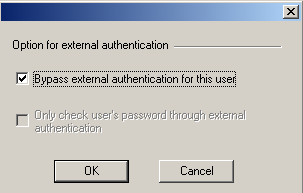
However, you can create a user with username "anonymous" in the local FTP server and select the option "Bypass the external authentication" in his settings([User settings]->[Account]->[Option for external authentication]), as shown in the picture below. The local FTP user will bypass the external authentication and be authenticated against the local FTP server. His settings will come from the local FTP server also.
Troubleshooting Active Directory problems
If you have problems integrating Xlight FTP Server with Active Directory, you can select the external user authentication option "Show debug trace information in Error Log". After selecting this option, the Active Directory debug information for Xlight FTP Server will be written to the Error log.
The following are two common configuration mistakes with Active Directory:
1. The normal user's home directory should not be located in the domain controller. Because the default domain security policy by Microsoft will prohibit normal users from logging on to the domain controller and accessing files in it. So normal user can be authenticated to AD, but he will not be able to access files in the domain controller. Users need to have the interactive log-on permission to the domain controller to access files in it. If you want to use the user home directory in the domain controller, the link at http://technet.microsoft.com/en-us/library/cc785165(WS.10).aspx has steps to change the default domain security policy.
2. When running Xlight FTP Server in older Windows OS, for example, Windows 2000, the account running the Xlight program must have the "Act As Part Of The Operating System" (SE_TCB_NAME) privilege. Otherwise, the Active Directory user will not be able to access his home directory. The (SE_TCB_NAME) privilege can be set in Local Security Policy MMC snap-in under LocalPolicies/User Rights Assignments. This problem is caused by an OS restraint before Windows XP. So for Windows OS after and including Windows XP, there is no need to assign this privilege for the account running the Xlight FTP program.
How to install extended schema xlightFTPdUser in the Active Directory
There is another option "Use extended schema "xlightFTPdUser". It will provide many Xlight FTP Server-related options by using the extended schema xlightFTPdUser. You can click here to check what options are provided by extended schema xlightFTPdUser.
Please note: The following steps are optional. If you don't want to use options of xlightFTPdUser schema, you can skip the steps below.
When this option is selected, the attribute "homeDirectory" of the user object from AD will not be used as the FTP home directory. Instead "ftpHomeDirectory" from the extended schema "xlightFTPdUser" will be used for this user's FTP home directory.
Before using this option, extended schema xlightFTPdUser must be installed in the Active Directory. The procedure is shown below.
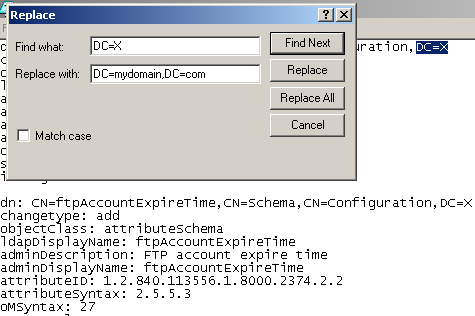
To install schema xlightFTPdUser, first, you need to open the file "AD-xlightFTPdUser.ldif" and replace all DC=X with your domain as shown in the figure below. "AD-xlightFTPdUser.ldif" can be found under the "ldap" directory in the folder where Xlight FTP Server is installed.
Save the file "AD-xlightFTPdUser.ldif". You can use the tool ldifde.exe to import schema xlightFTPdUser into Active Directory as shown in the figure below. You have to log on as a domain administrator to do the operations below.

If the above operation succeeds, you can use MMC to check if schema xlightFTPdUser is imported successfully as shown in the figure below:
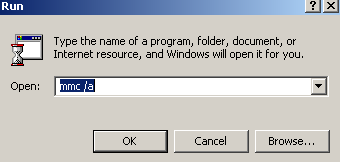
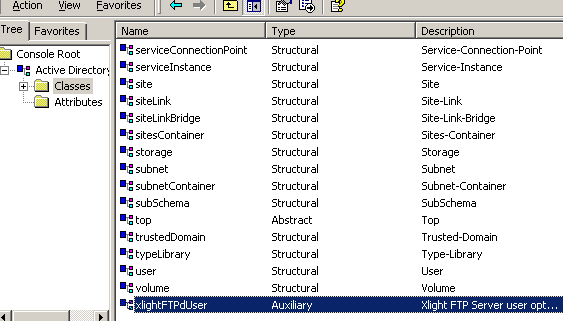
In the MMC Snap-in, select Active Directory Schema and click the "Add" button and then the "Close" button as shown in the figure below:
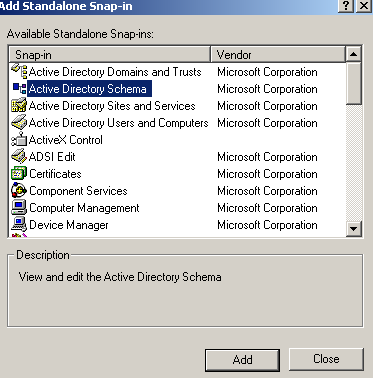
If you can see the auxiliary object class xlightFTPdUser in the window below, the schema xlightFTPdUser is imported successfully.
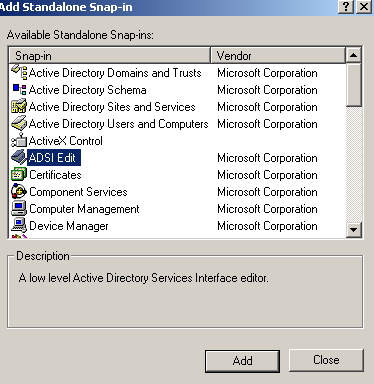
You can use ADSI Edit to modify Xlight FTP Server options for users in the Active Directory. ADSI Edit can be found in the Windows Support Tools from the product CD or downloaded from the Microsoft website. From the MMC Snap-in window, add ADSI Edit as shown in the figure below:
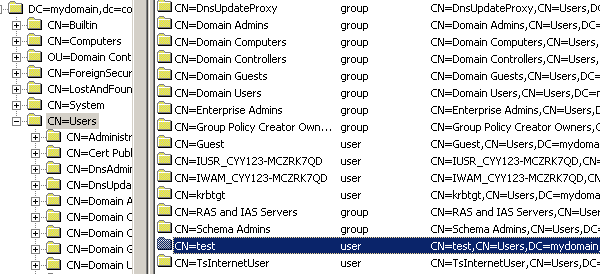
Connect to Active Directory with ADSI Edit. Select the "CN=Users", you will find users in the right side panel. Select the user you want to set Xlight FTP Server-related options as shown in the figure below:
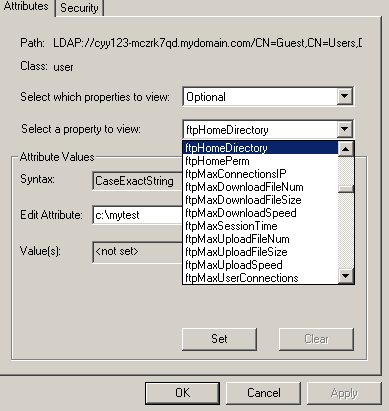
Press the right button of the mouse; click the menu item "Properties". From the dialog box, select and edit Xlight FTP Server-related options as shown in the figure below. These attributes are all started with the letter "ftp". You only need to add the attributes you want to use. When you add the attribute "ftpHomeDirectory", if the option "Use NTFS permission for user's home directory" is not selected, you need to add the attribute ftpHomePerm to control the permission of ftpHomeDirectory.
You should now be able to use Schema xlightFTPdUser and set Xlight FTP Server-related FTP options for this user.
Setup virtual paths for an FTP user
From Xlight FTP Server version 3.5, you can set up multiple virtual paths for a user through the attribute "ftpVirtualPaths" of the "xlightFTPdUser" schema. The string for "ftpVirtualPaths" is the "|" separated combination of virtual path, real path and permission, as shown in the figure below. Its format is "virtual path | real path | permission". An example virtual path string can be "/files/ | C:\Downloads\ | RLS----", where the "/files/" is the virtual path, "C:\Downloads\" is the real path mapped to "/files/", "R--L--S" is permission flag of "/files/". Virtual path, real path and permission are separated by "|".You can refer to the description of "ftpHomePerm" for the meaning of each permission flag. Note: The virtual path must be a UNIX style path and the real path must be a Windows style path.
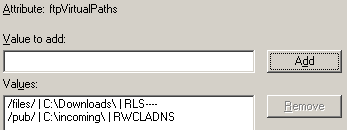
The variable %username% can be used for the real path. %username% will be replaced with the actual user name after user logins. If the real path doesn't exist when user logins, Xlight FTP Server will create it automatically.